
Summary
Full Transcript
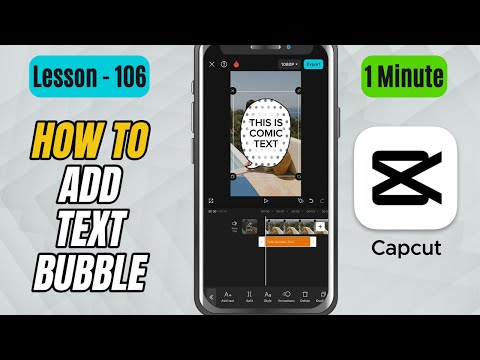
In this tutorial, you’ll learn how to add text bubbles in CapCut Mobile — perfect for creating chat-style videos, fun captions, or comic-style speech effects. CapCut offers a variety of bubble styles that you can customize with different fonts, colors, and animations to match your video’s theme. Steps to Apply the Effect: Open CapCut Mobile and import your video into the timeline. Tap on Text from the bottom toolbar. Select Add text and type your message. Now tap on the Bubbles tab in the text editing options. Browse through the available bubble styles — you’ll find speech bubbles, chat boxes, and decorative styles. Tap on the bubble you like, and it will instantly apply to your text. You can then adjust the size, position, and rotation of the text bubble on your video. Go to the Style or Animation tabs if you want to customize the font, color, or add motion to your bubble. Once done, play the video to preview your final look. #capcut #capcuttutorial #capcutmobile

Continue this lesson in the app
Install CourseHive on Android or iOS to keep learning while you move.





