
Summary
Keywords
Full Transcript
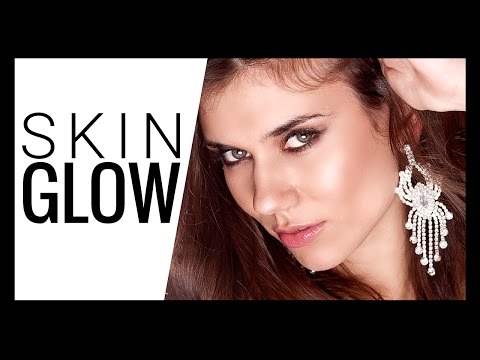
If your portraits are looking flat, adding a glamorous skin glow at the "right places" is the secret to achieving much more dimension and making the skin pop. Much like dodging and burning, in this video, we are going to automatically add soft highlights to skin, without the need to brush it manually, using filters and blend modes in Photoshop CC 2017. Adding harsh highlights to face can be counterproductive and can make the skin look more oily. Hence, our focus here is to add soft lights to areas that are comparatively a little brighter than the rest and are protruding, like the peak of the nose and the cheekbones. This method in portrait retouching is also non-destructive as the diffuse glow filter that we are going to use can easily be applied to smart objects. Using this technique, we will achieve the glamorous glow most commonly seen in Fashion magazines and advertisement billboards. ► Subscribe: https://goo.gl/iaROYY If you think you can help, entertain or even disturb someone by sharing this channel's video. Go ahead! : https://goo.gl/IUhnUl ►LET'S CONNECT: Facebook: http://facebook.com/piximperfect Twitter: https://twitter.com/piximperfect Instagram: https://www.instagram.com/piximperfect Google+: https://plus.google.com/+UnmeshDinda

Continue this lesson in the app
Install CourseHive on Android or iOS to keep learning while you move.


