
Summary
Keywords
Full Transcript
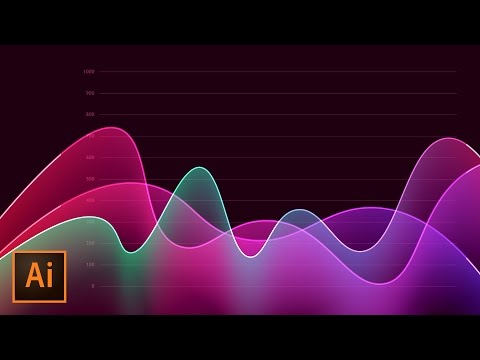
BEAUTIFUL COLOR AND BLENDING | Create a Simple Graph Chart | Use Beautiful Colors and Gradients You’re going to love using the Curvature Tool and the Blend Tool to create these beautiful line graphs! 🎯 Subscribe for Daily Tutorials → https://goo.gl/DN4Nln 💰 Buy the Photoshop Course and Support the Channel → http://bit.ly/28NuwFy 🔥 ↓ VIDEO GUIDE ↓ 🔥 00:35 Getting started 01:27 Creating the layers and shapes we need to start 02:35 Creating the graph lines quickly 05:06 Creating the graph numbers 09:19 Creating a masked layer 11:39 Introducing the Curvature Tool 12:32 Adding the first gradient 13:22 Creating the color blend 15:50 Creating a second graph line 18:34 Adding some contrast/transparency 19:05 Playing with the blends to tweak the whole effect 20:42 Final thoughts In this Adobe Illustrator tutorial, we’ll build a simple colorful analytics dashboard style line graph with a blended gradient that fades in and out based upon the curve in the line chart. We’ll use the Grid tool, the Curvature tool, Gradients, the Curvature tool, Direct Selection, and Opacity changes to create a beautiful and colorful dynamic effect. ⚡️ written tutorial: http://bit.ly/2jMTZrC INSTAGRAM: http://instagram.com/tutvid TWITTER: http://twitter.com/tutvid FACEBOOK: https://www.facebook.com/tutvid SNAPCHAT: tutvid.com tutvid is a YouTube channel dedicated to creating the best Adobe Photoshop, Premiere Pro, Lightroom, and Illustrator tutorials. My goal is to create the best, most informative, and entertaining tutorials on the web. If you enjoy my videos, the best way to support what I do here is to purchase my course linked above or simply subscribe to the YouTube channel by pressing the red button. ✉️ business inquiries: [email protected] – CREDITS: Social Icons in outro: http://www.freepik.com/free-vector/six-social-networking-icons-with-infographic-resources_982300.htm

Continue this lesson in the app
Install CourseHive on Android or iOS to keep learning while you move.


![Curso de Adobe Premiere Pro [Gratis y Certificado] - Edutin Academy](https://i.ytimg.com/vi/RHpxq64K6tA/hqdefault.jpg)


