Summary
Keywords
Full Transcript
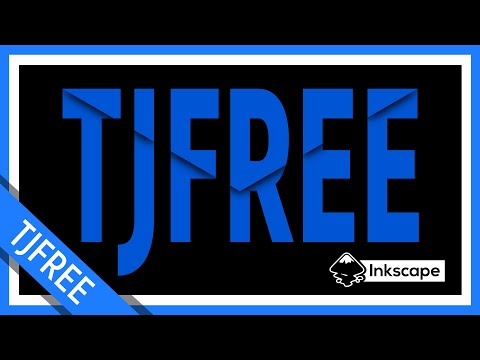
Steps: 1. Draw a rectangle 2. Using the Text tool, write the word in bold 3. Select the text and go to Path - Object To Path 4. Object - Ungroup 5. Path - Union 6. Change the fill color 7. Duplicate text and change its color 8. Draw a triangle 9. Turn on the Snapping 10. Place the left side of the triangle to the left side of the text and stretch the triangle to the width of the text 11.Select both the triangle and the upper text using the Ctrl key 12. Path - Intersection 13. Duplicate the cropped part of the text and make it black 14. Blur the black clipped text 15. Duplicate this blurred object 16. Select the upper blurred object and move it 2 levels down 17. Select the next blurred object and move it down 1 level. 18. Change the color of the top clipped text to the color of the whole text 19. Enjoy the effect! Inkscape is free and open source vector graphic design & editing software! https://inkscape.org Subscribe for more Free Software info: https://www.youtube.com/tjfree?sub_confirmation=1 I'd love to connect with you on these socials: https://www.facebook.com/itstjfree https://www.instagram.com/itstjfree https://www.reddit.com/user/itstjfree https://twitter.com/itstjfree Visit my Website for Free Software Reviews and Tutorials: https://tjfree.com/

Continue this lesson in the app
Install CourseHive on Android or iOS to keep learning while you move.