
Summary
Keywords
Full Transcript
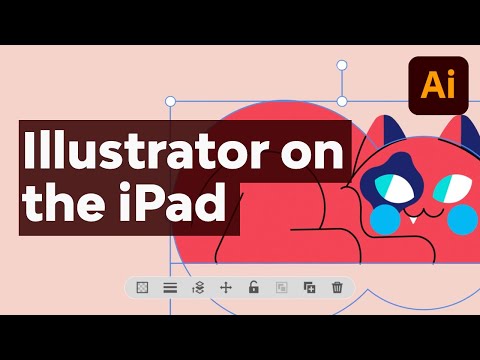
Adobe Illustrator for iPad just launched! Find out how it works and how it compares with the desktop version in this video. ►Browse Envato Elements to find professional design assets to use with Illustrator for iPad: https://elements.envato.com/?utm_campaign=yt_tutsplus_dLv3mKQSElI&utm_medium=referral&utm_source=youtube.com&utm_content=description Get ready to take your illustrations away from your desktop computer and onto your iPad! Now, for the first time, vector artists will be able to create their beautiful graphics, logos, icons and more using Adobe Illustrator on an iPad. With its unique features and modern, minimalist look, Adobe Illustrator for iPad truly feels at home on the tablet. The features are intuitive, and using the Apple Pencil makes using the app a completely new and joyful experience. This is great news for beginners, and it can act as a great introduction to the desktop version of Adobe Illustrator. Here's what you'll learn in this video: 00:57 - How to buy Adobe Illustrator for iPad on the App Store 02:21 - Illustrator for iPad User Interface (UI) overview 02:46 - Illustrator for iPad Touch shortcuts 04:15 - Illustrator for iPad Pen Tool 06:17 - Illustrator for iPad Pencil Tool 07:40 - Illustrator for iPad Symmetry Tool 08:23 - Illustrator for iPad Radial pattern 10:08 - Illustrator for iPad Type on Path Tool 11:23 - Example logo creation in Illustrator for iPad 14:42 - How to apply gradients in Illustrator for iPad ► Download Unlimited Stock Photos, Fonts & Templates with Envato Elements: https://elements.envato.com/?utm_campaign=yt_tutsplus_dLv3mKQSElI&utm_medium=referral&utm_source=youtube.com&utm_content=description Assets Used in This Video: • Inside Logo: https://elements.envato.com/inside-logo-YXG23GW?utm_campaign=yt_tutsplus_dLv3mKQSElI&utm_medium=referral&utm_source=youtube.com&utm_content=description Read more on How to Use Illustrator on iPad on Envato Tuts+: https://design.tutsplus.com/tutorials/how-to-use-illustrator-on-ipad--cms-35907?utm_campaign=yt_tutsplus_dLv3mKQSElI&utm_medium=referral&utm_source=youtube.com&utm_content=description - - - - - - - - - - - - - - - - - - - - - - - - - - - - - - - - - - - - - - - Envato Tuts+ Discover free how-to tutorials and online courses. Design a logo, create a website, build an app, or learn a new skill: https://tutsplus.com/?utm_campaign=yt_tutsplus_dLv3mKQSElI&utm_medium=referral&utm_source=youtube.com&utm_content=description Envato Elements All the creative assets you need under one subscription. Customize your project by adding unique photos, fonts, graphics, and themes. ► Download Unlimited Stock Photos, Fonts & Templates with Envato Elements: https://elements.envato.com/?utm_campaign=yt_tutsplus_dLv3mKQSElI&utm_medium=referral&utm_source=youtube.com&utm_content=description ► Subscribe to Envato Tuts+ on YouTube: https://www.youtube.com/tutsplus ► Follow Envato on X: https://twitter.com/envato ► Follow Envato on TikTok: https://www.tiktok.com/@envato ► Follow Envato on Instagram: https://www.instagram.com/envato/ ► Follow Envato on Facebook: https://www.facebook.com/envato ► Explore Envato's full stack of AI tools, all included in your subscription: https://labs.envato.com/?utm_campaign=yt_tutsplus_dLv3mKQSElI&utm_medium=referral&utm_source=youtube.com&utm_content=description

Continue this lesson in the app
Install CourseHive on Android or iOS to keep learning while you move.


![Curso de Adobe Premiere Pro [Gratis y Certificado] - Edutin Academy](https://i.ytimg.com/vi/RHpxq64K6tA/hqdefault.jpg)


