Summary
Keywords
Full Transcript
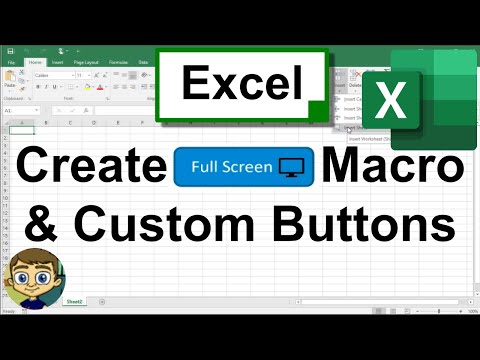
Learn how to create your own custom Excel buttons to use with macros, hyperlinks, and more. The example we'll use in this video is that of a macro that when executed will put Excel into full screen mode. This video will extend your knowledge of Excel macros while also teaching you about custom buttons. Watch my entire playlist of Excel tutorials: http://bit.ly/tech4excel ***Consider supporting Technology for Teachers and Students on Patreon***: https://www.patreon.com/technologyforteachersandstudents Here's a link to the practice file for this video (copy/paste it into browser): http://bit.ly/macrobuttons #exceltutorial #excel Here's the VBA code for this macro: Sub GoFullScreen() Application.DisplayFullScreen = _ Not Application.DisplayFullScreen End Sub

Continue this lesson in the app
Install CourseHive on Android or iOS to keep learning while you move.