Summary
Keywords
Full Transcript
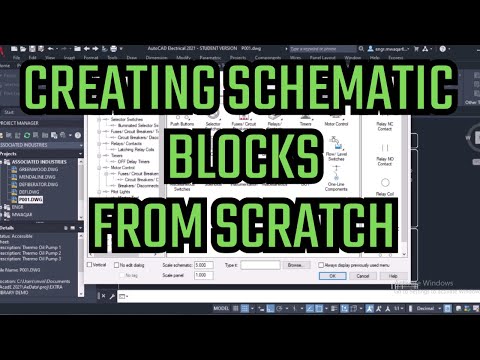
The video “AutoCAD Electrical 8.1a: Easy Guide to Generate Custom Symbols & Blocks” is a complete practical tutorial designed for electrical engineers, drafters, and students who want to master the creation of custom electrical symbols and schematic blocks in AutoCAD Electrical. It provides a step-by-step, hands-on demonstration of how to generate, edit, and manage custom components that are not included in the default AutoCAD Electrical library — one of the most crucial skills for professional circuit and control panel design. The tutorial begins with an introduction to custom symbol creation, explaining why it’s important to create new symbols for components such as relays, switches, sensors, push buttons, or devices that may not exist in the standard AutoCAD Electrical library. By learning how to create these symbols from scratch, users can customize their schematics to match real-world electrical components, making their designs more accurate, organized, and ready for professional documentation. Next, the video provides detailed, step-by-step guidance on how to insert and modify different types of components within a drawing. It walks viewers through the use of essential AutoCAD tools such as Symbol Builder, Insert Component, and Block Editor, explaining how each tool helps to refine symbol geometry, define connection points, and assign proper attributes. This ensures that your custom symbols are not just graphical drawings but fully functional electrical components recognized by AutoCAD Electrical’s intelligent system. The instructor also demonstrates how to save these custom symbols into your personal component library or project-specific symbol folder for easy reuse in future projects. This part of the tutorial highlights the importance of maintaining naming conventions, attribute definitions, and file organization so that symbols can be efficiently located and inserted in subsequent electrical schematics. Proper file management in AutoCAD Electrical helps engineers maintain a consistent workflow across multiple projects and design teams. One of the key learning outcomes of this video is understanding the difference between creating simple blocks and using the Symbol Builder tool for more complex designs. While simple blocks can be used for static elements, Symbol Builder allows users to create intelligent symbols with predefined attributes, tags, and connection points. This distinction helps users decide when to use basic AutoCAD functionality and when to apply the advanced automation tools built into AutoCAD Electrical. Finally, the video concludes with a practical demonstration showing how to insert a newly created block into an electrical schematic. Viewers learn about naming conventions, dimensions, and proper alignment techniques to maintain clarity and professionalism in electrical drawings. The video emphasizes clean design standards, symbol scaling, and schematic organization — essential for accurate documentation, troubleshooting, and collaboration in industrial automation projects. 🎯 Relevant Keywords: AutoCAD Electrical tutorial, custom symbols in AutoCAD Electrical, how to create blocks in AutoCAD Electrical, Symbol Builder AutoCAD, electrical schematic design, electrical drafting guide, AutoCAD Electrical training, engineering CAD tutorial, push button symbol AutoCAD, custom electrical components design, AutoCAD Electrical beginner to advanced, industrial automation drawing, AutoCAD Electrical symbol library, creating smart symbols in AutoCAD, AutoCAD Electrical schematic workflow, control panel design AutoCAD.

Continue this lesson in the app
Install CourseHive on Android or iOS to keep learning while you move.